

Moonvalley Marey Realism v1.5 is an AI video generation model designed for cinematic-level creation. The model is trained entirely with commercially licensed content, ensuring copyright compliance and commercial safety.
Product Highlights
- Exceptional prompt comprehension: Accurately interprets complex prompt instructions.
- Native 1080p HD quality: The training dataset is based on 1080P videos, resulting in fine and detailed output.
- Realistic physics and dynamic performance: Precisely simulates physical motion models and natural dynamics, delivering professional-grade realism.
- Complex scene layering and advanced lighting effects: Supports foreground, midground, and background layering in complex scenes, with intelligent spatial relationship understanding.
- Production-level control features such as motion and pose transfer: Automatically generates realistic lighting for composite scenes.
Moonvalley Text-to-Video Workflow
1. Download the Workflow File
Download the workflow file in JSON format
2. Follow the Steps to Run the Workflow
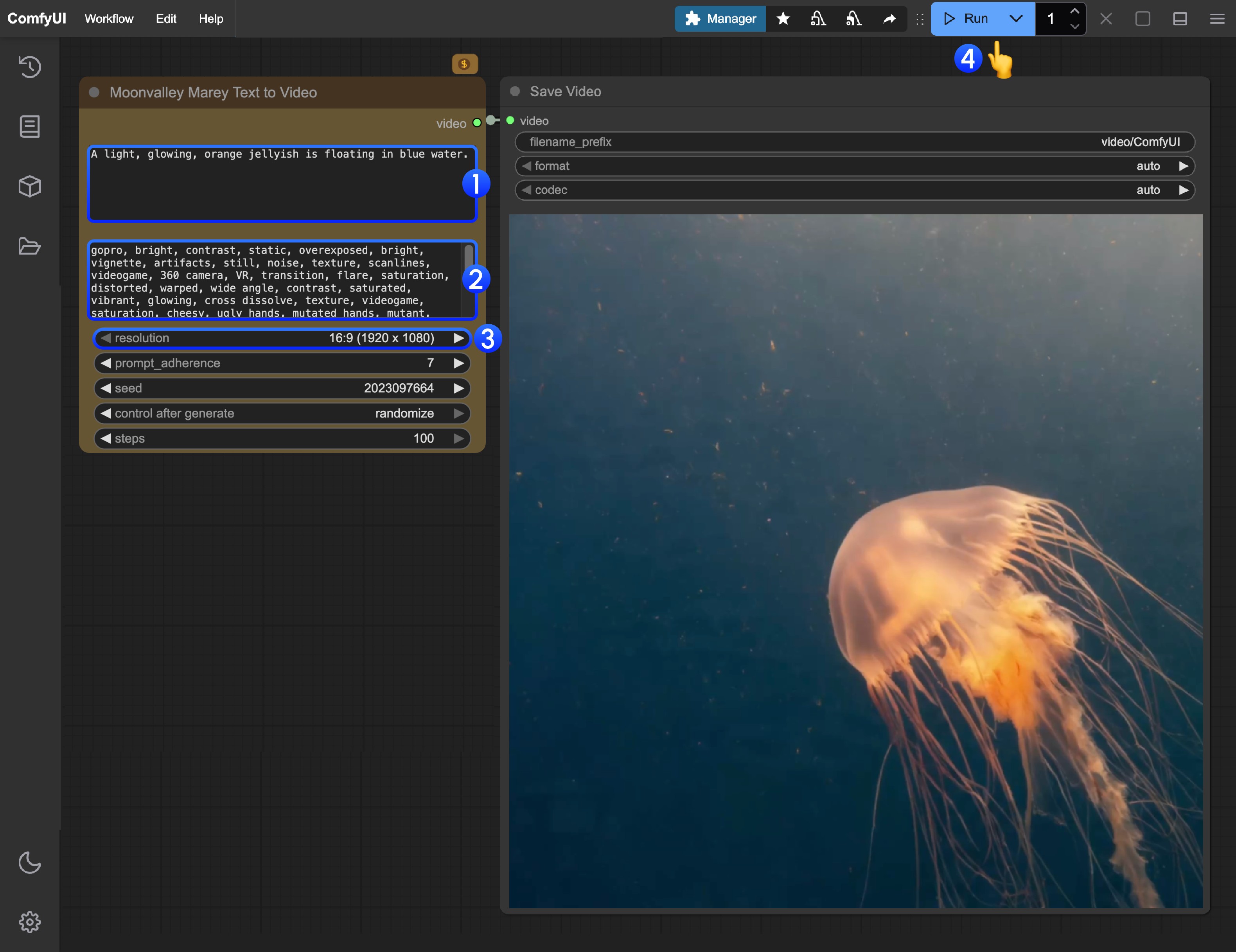
- Enter the positive prompt (content you want to appear in the video)
- Enter the negative prompt (content you do not want to appear in the video)
- Modify the video output resolution
- Click the
Runbutton, or use the shortcutCtrl(cmd) + Enterto start video generation - After the API returns the result, you can view the generated video in the
Save Videonode. The video will also be saved in theComfyUI/output/directory
Moonvalley Image-to-Video Workflow
1. Download the Workflow File
Download the workflow file in JSON format
Download the image below as the input image
2. Follow the Steps to Run the Workflow
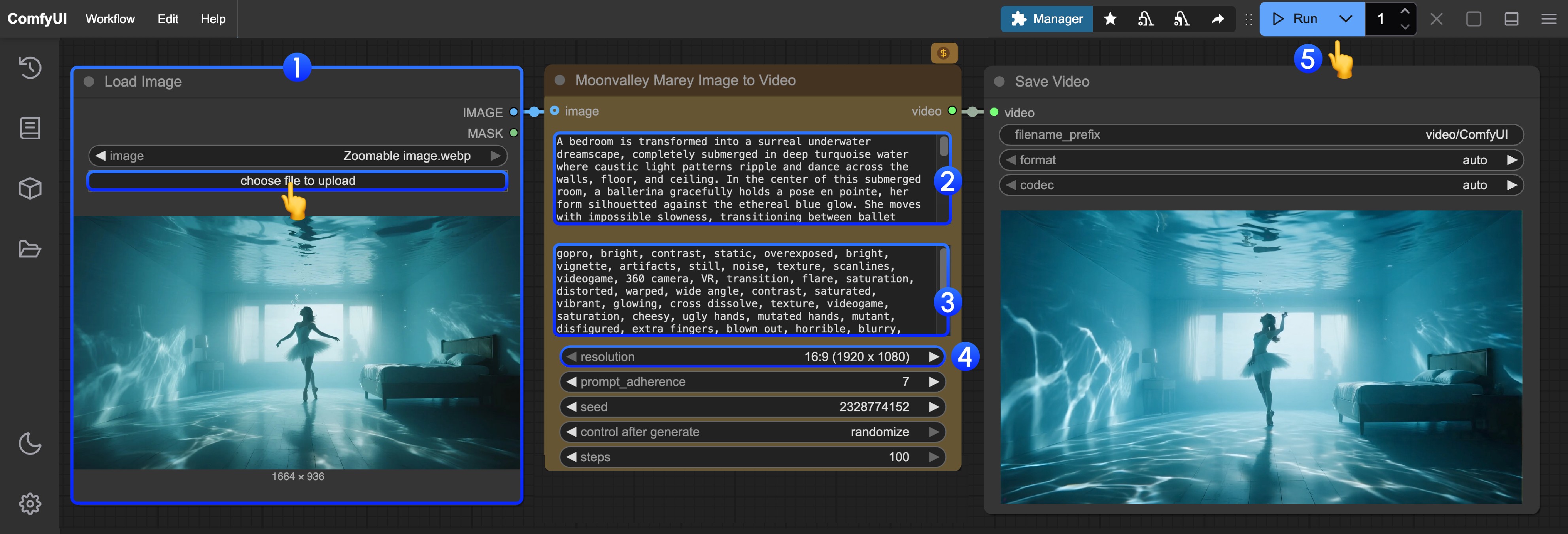
- Load the input image in the
Load Imagenode - Enter the positive prompt (content you want to appear in the video)
- Enter the negative prompt (content you do not want to appear in the video)
- Modify the video output resolution
- Click the
Runbutton, or use the shortcutCtrl(cmd) + Enterto start video generation - After the API returns the result, you can view the generated video in the
Save Videonode. The video will also be saved in theComfyUI/output/directory