

Cosmos Predict2 Video Generation
Using Cosmos-Predict2 for video generation
Cosmos Predict2 Video2World Workflow
When testing the 2B version showed it uses around 16GB of VRAM.1. Workflow File
Please download the image below and drag it into ComfyUI to load the workflow. The workflow already has embedded model download links.
2. Manual Model Installation
If the model download wasn’t successful, you can try to download them manually by yourself in this section. Diffusion model For other weights, please visit Cosmos_Predict2_repackaged to download Text encoder oldt5_xxl_fp8_e4m3fn_scaled.safetensors VAE wan_2.1_vae.safetensors File Storage Location3. Complete Workflow Step by Step
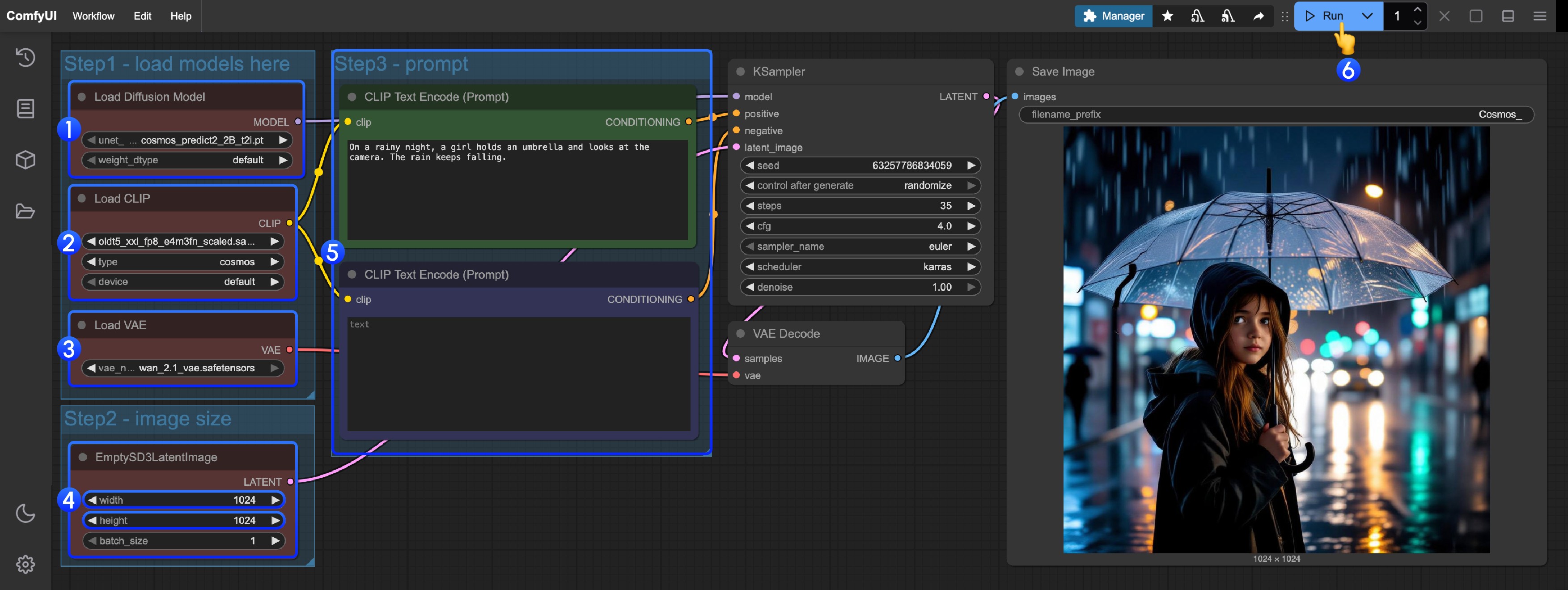 Please follow the steps in the image to run the workflow:
- Ensure the
Load Diffusion Modelnode has loadedcosmos_predict2_2B_t2i.safetensors - Ensure the
Load CLIPnode has loadedoldt5_xxl_fp8_e4m3fn_scaled.safetensors - Ensure the
Load VAEnode has loadedwan_2.1_vae.safetensors - Set the image size in
EmptySD3LatentImage - Modify the prompts in the
ClipTextEncodenode - Click the
Runbutton or use the shortcutCtrl(cmd) + Enterto run the worklfow - Once generation is complete, the image will automatically save to the
ComfyUI/output/directory. You can also preview it in thesave imagenode.